
First panel, plugin, task & terminal
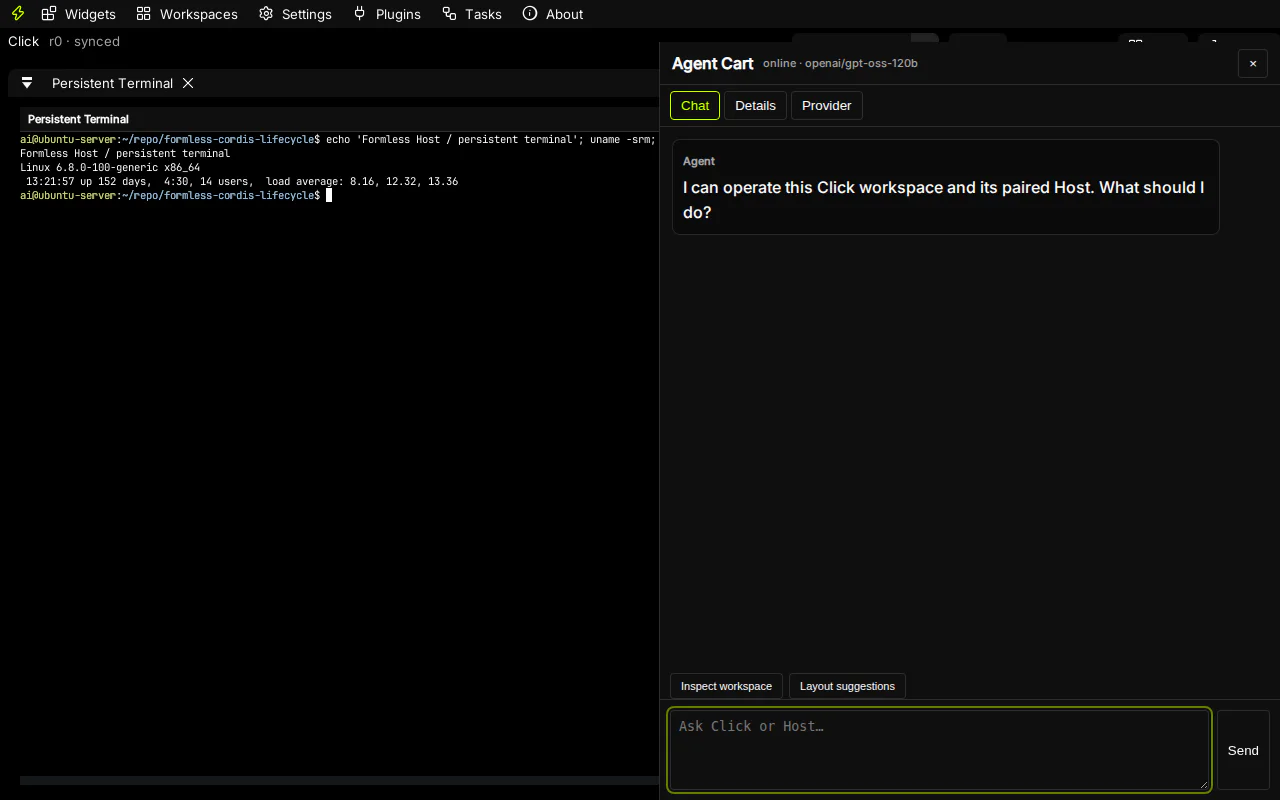
1. Open a terminal
Section titled “1. Open a terminal”Choose Widgets → New Persistent Terminal. Click requests the typed dev.formless.tty capability; Host owns the persistent session, while the trusted ABI v2 widget renders and sends input. Reopening the panel reconnects to the Host-side terminal rather than creating an in-browser shell.
2. Inspect a plugin
Section titled “2. Inspect a plugin”Open Plugins → Host plugins. Select an installed plugin to see desired and observed state, generation, permission mode, dependencies, reason for running, and recent lifecycle events. Start/stop controls submit revisioned Host commands; they do not call Podman from the browser.
3. Add a panel
Section titled “3. Add a panel”Choose a reusable definition under Widgets → Add installed panel. A definition can have multiple instances. Closing an instance removes only that workspace instance; it does not delete the definition or uninstall a Host plugin.
4. Follow a task
Section titled “4. Follow a task”Open Tasks. The native task center shows task status, assigned worker, approvals, reasoning and execution trace. Host remains the task authority, so reconnecting Click does not lose the operation.
5. Develop through MCP
Section titled “5. Develop through MCP”Open Settings → Plugins → Develop panels with an agent and copy the temporary MCP descriptor. Keep Click online, connect an MCP client, then use paired_click_action to create a service-health Canvas. The result includes a correlated verification receipt.
Next: understand panel runtimes or operate plugin lifecycle.