
Your first workspace
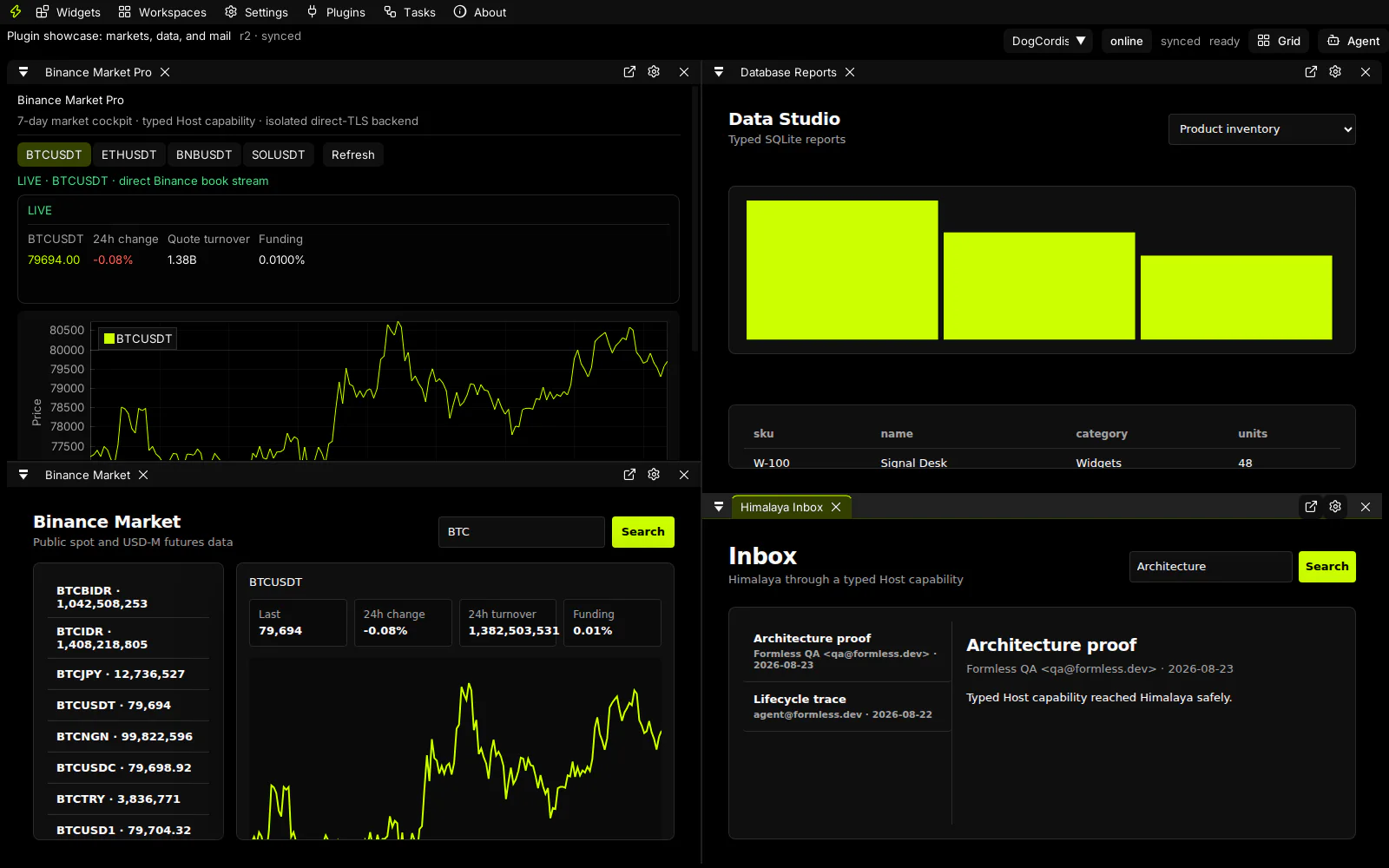
- Open Click. In a source checkout, run
npm --prefix click/shell installandnpm --prefix click/shell run dev, then openhttp://127.0.0.1:7791. - Pair Host. Open Settings → Hosts, enter
http://127.0.0.1:8787, and complete the displayed pairing confirmation. - Choose a workspace. Use Workspaces to create, rename, duplicate, or switch a named workspace. A workspace is a virtual desktop containing definitions, instances, and a saved dock layout.
- Add a panel. Open Widgets → Add installed panel. New panels enter available space without rewriting the rest of the layout.
- Save and switch. Layout changes synchronize through Host. Switching workspaces restores that workspace’s panel instances and docking tree.
The first seeded development workspace contains Persistent Terminal. Additional Canvas, daScript, and ABI v2 widgets appear after installation or import.
Pairing storage
Section titled “Pairing storage”Access tokens stay in memory. Click persists only public Host profile data and a browser-key handle. On HTTPS and localhost the key is non-exportable Web Crypto material. Tokens are never embedded in Canvas panels or exported workspace packages.
Mobile
Section titled “Mobile”Open /mobile or use a phone-sized viewport. The same workspace appears as one panel or an optional two-panel split; portrait uses top/bottom and landscape uses left/right. Rotation never overwrites the saved desktop dock tree.